With a passkey, you log in with your fingerprint, your face or the PIN of your phone or computer. You don't have to remember or type a password, and a passkey only works on netslim.nl: a fake site that looks like ours can't use it.
Klant bij Netslim? Log in, dan regel je dit hier met één klik.
InloggenAdd a passkey
- Log in and go to Profile › Security.
- Under Passkeys, click Add passkey. If you've been logged in for more than 10 minutes, we ask for your password first.
- Your device asks for your fingerprint, face or PIN. Done: the passkey appears in the list and you get a confirmation email.

Your device or password manager stores your passkey, for example iCloud Keychain (the Passwords app on iPhone and Mac), Google Password Manager, Windows Hello or 1Password. With iCloud Keychain and Google Password Manager, it then also appears on your other devices.
Logging in with your passkey
On the login page, click Log in with a passkey, or click in the Email address field and choose your passkey from the suggestions. You don't have to enter an email address or password, and no code is sent: a passkey is already two-step (your device plus your fingerprint, face or PIN).
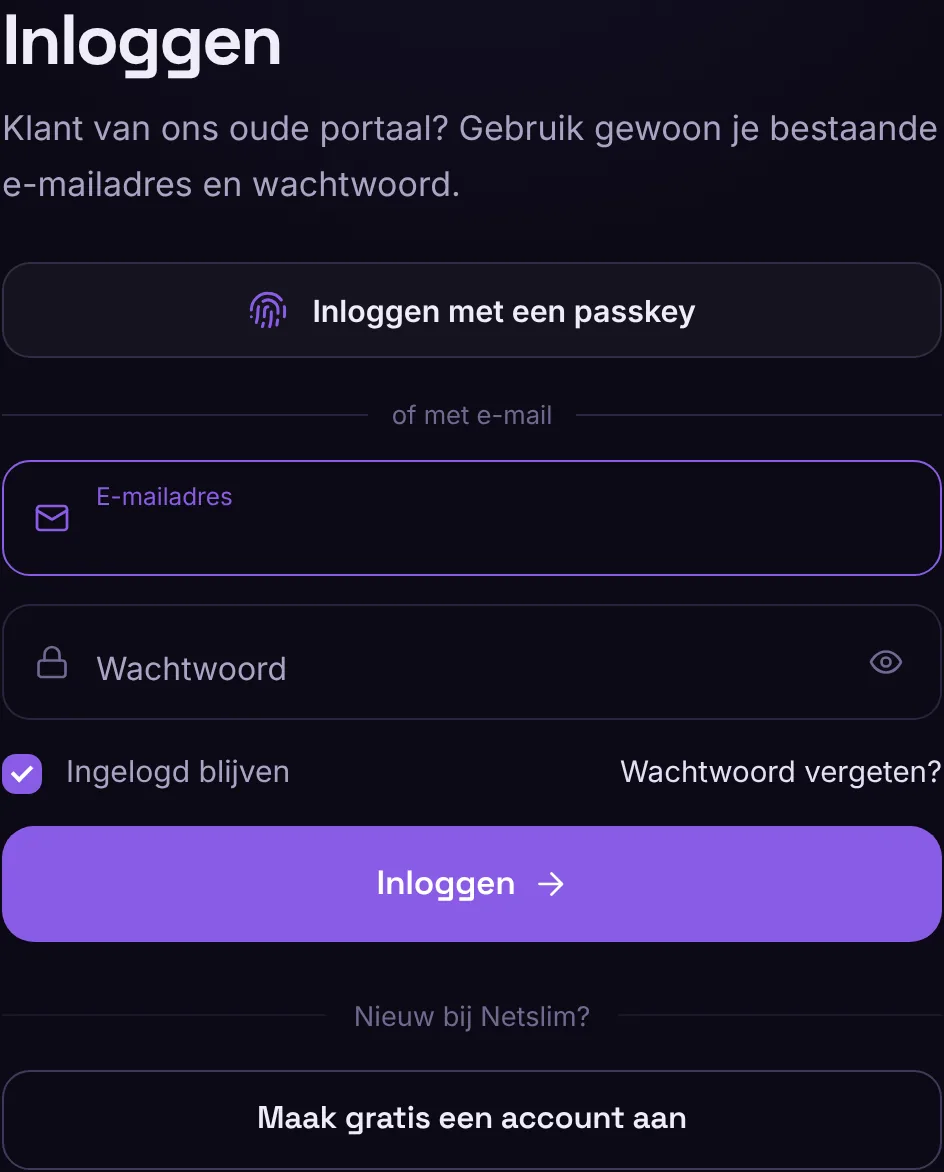
On a computer without a passkey, you can also use your phone: in your browser's window, choose another device and scan the QR code with your phone.
Does a passkey count as two-step verification?
Yes. If you have a passkey, your account is protected and you don't need to turn on 2FA separately. If you do log in with your password once, we send a code to your email. That way, your password alone is no use to anyone else.
Multiple devices
You can add multiple passkeys, for example one on your phone and one on your work laptop. Give them a recognisable name in the list with Rename.
Lost or replaced phone
Log in with your email address and password and click Delete next to the old passkey. Then add a new one on your new phone. Can't log in at all? Contact us. After an identity check, we remove your passkeys so you can start again.
Does it work in my browser?
Passkeys work in recent versions of Chrome, Safari, Edge and Firefox, on Windows, Mac, iPhone, iPad and Android. If you don't see the button, your browser doesn't support it yet. Logging in with email and password always keeps working.