Is someone working on your website, such as your web developer, a developer or an agency? Then give that person a temporary login of their own for exactly what they need. You don't share a password, you can see what happens, and everything stops automatically after the period. You can find it in your account under Account › Access.
Klant bij Netslim? Log in, dan regel je dit hier met één klik.
InloggenWhat you can give
- Files (FTP): a separate FTP account for your website folder (/httpdocs). It works with FTP over TLS on port 21, in FileZilla, Cyberduck or an editor.
- WordPress admin: log in with one click as their own temporary admin, never as you. They can't change or delete your admin account.
- DNS for the domains you tick: add, change and delete records. Nameservers, DNSSEC, forwarding and the transfer code stay with you.
- Edge: work on your Edge sites, like a team member, at no extra cost. You place orders, pay, go live, create API keys and send text messages.
Invoices, payments, your details and cancelling always stay with you.
How to give access
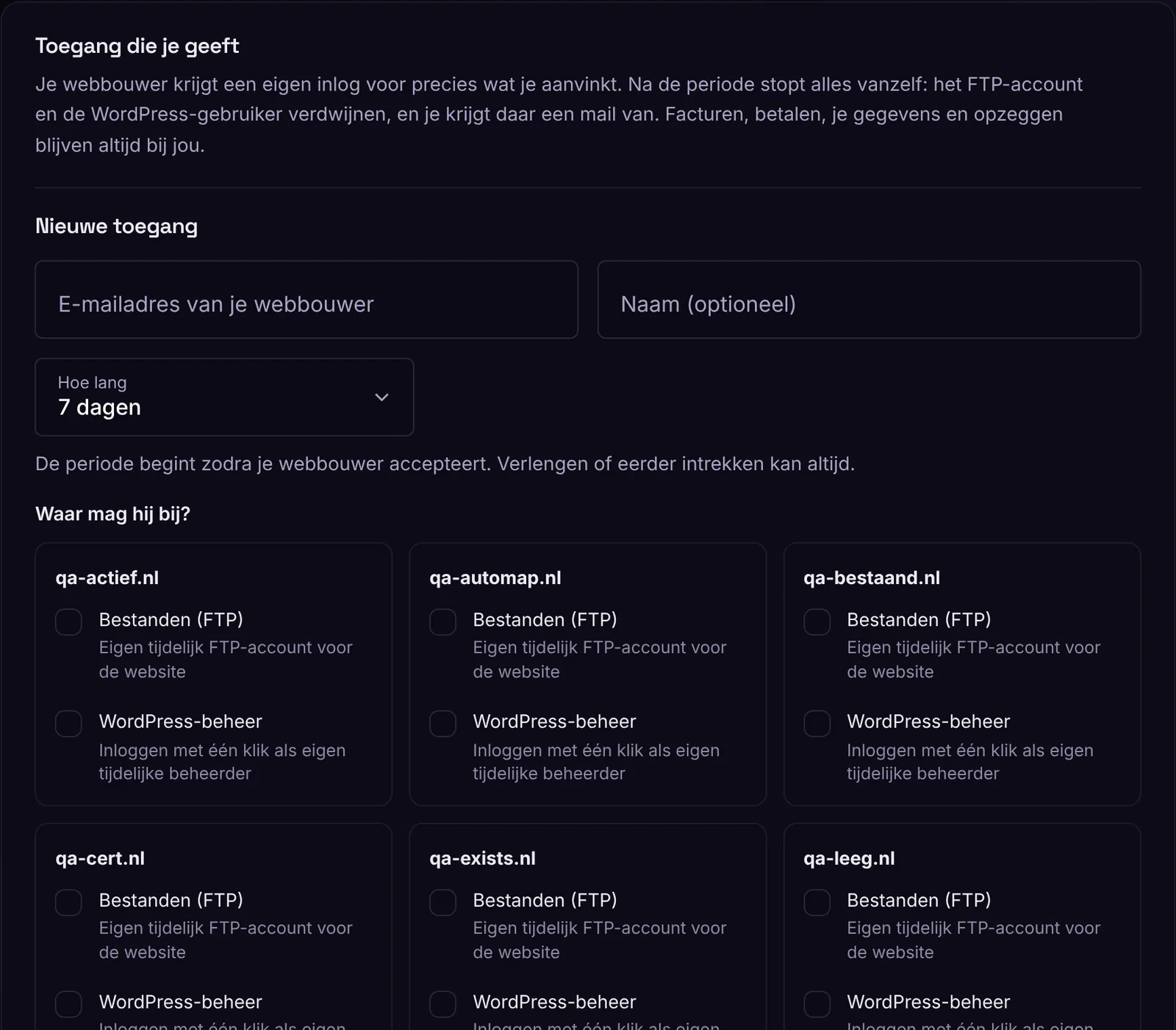
- Go to Account › Access and enter your web developer's email address under New access.
- Choose how long: 1 day, 3, 7, 14 or 30 days. The time only starts when they accept the invitation.
- Tick what they can access. You can add a message, for example what needs to be done.
- Click Send invitation. They receive an email with a button. The invitation is valid for 7 days.
What your web developer does
They open the link in the email, log in or create a free account with the same email address, and click Accept access. After that, under Account › Access they see their FTP details, a button to log in to WordPress and links to DNS and Edge. Accepting with a different email address is not possible.
Renew, revoke and the log
For each access, you can see when it ends. You can renew it by 1 to 30 days at a time. Revoke stops everything immediately: the FTP account and the temporary WordPress admin disappear. The log shows what happened: accepting, logging in to WordPress, every DNS change and what was not allowed. You both get an email one day before the end, and also when the access stops.
Good to know
- Only give access to someone you trust. With FTP or WordPress admin, someone can change anything on your website, including installing plugins.
- Did your web developer create users in WordPress themselves? We leave those in place. At the end you get a short list, so you can check whether they can stay.
- If your hosting plan has no room for an extra FTP account, you see that straight away when you send the invitation. Then give WordPress admin only, or choose a larger plan.
- If your site was briefly unreachable at the end, we try to clean up again every hour until it works. Your site itself also no longer lets an expired temporary admin in.
- If your web developer finishes early, they can hand back the access themselves.