With staging, you make a copy of your WordPress site on staging.jouwdomein.nl. There you can safely test an update, a new theme or a big change. You can find it in your account under your hosting, under WordPress › Staging.
Create a copy
- Click Create staging copy. This takes a few minutes.
- If your DNS is with us, we set up the address staging.jouwdomein.nl for you, with a free SSL certificate.
- Click Log in to staging to open the WordPress of the copy.
The copy is only visible when you are logged in and does not appear in Google. The copy counts towards your disk space.
Push live: choose what goes along
Done testing? Under Push staging to live, choose what goes to your live site:
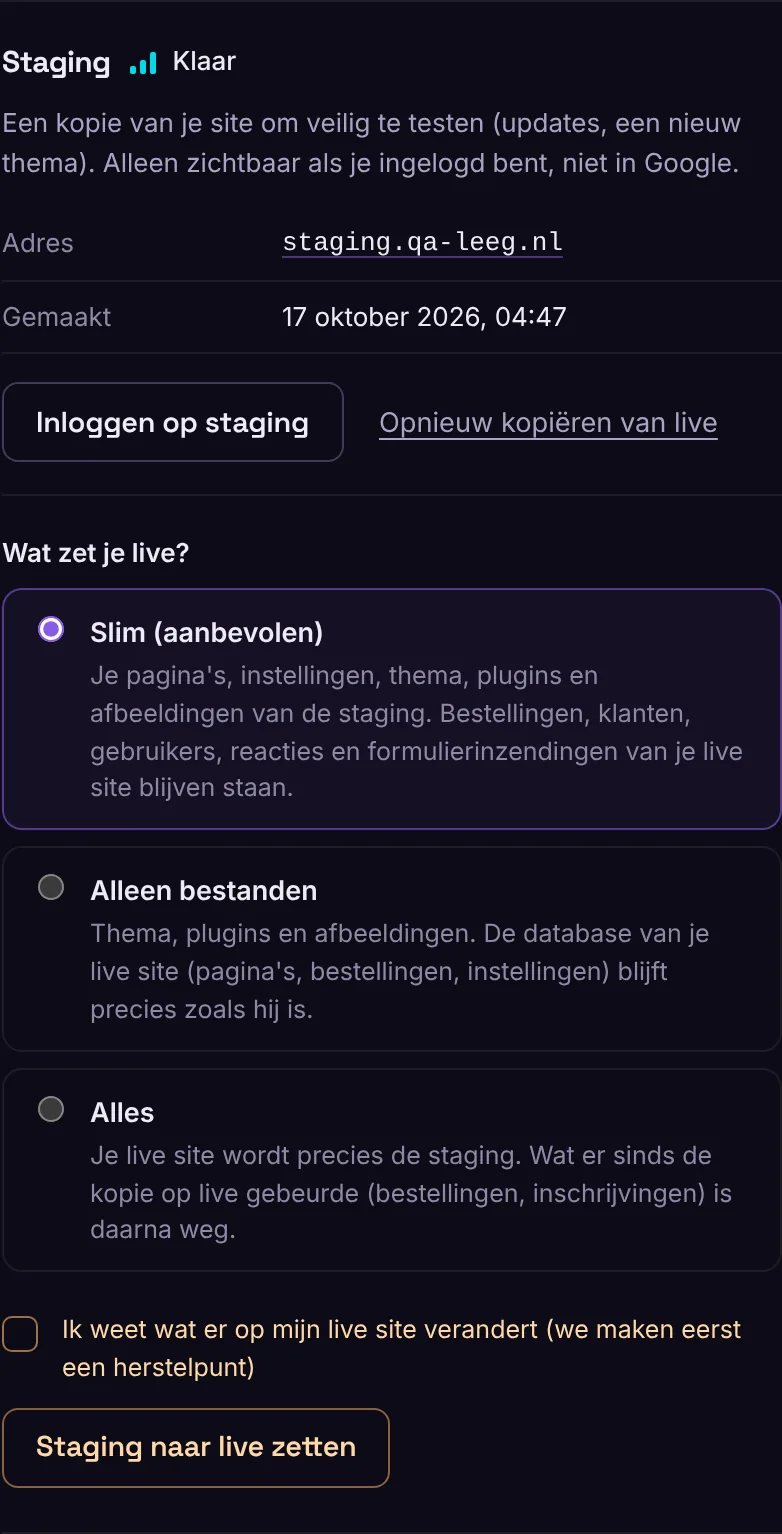
- Smart (recommended): your pages, settings, theme, plugins and images from the staging site. Orders, customers, users, comments and form submissions on your live site stay as they are. This way you don't lose anything that happened on live since the copy was made.
- Files only: theme, plugins and images. The database of your live site stays exactly as it is.
- Everything: your live site becomes exactly the staging site. Anything that happened on live since the copy was made is gone afterwards.
We always create a restore point of your live site first. If something goes wrong, you can roll it back.
A web shop with 
A smart push keeps orders separate if WooCommerce stores them in its own tables. This is called high-performance order storage (HPOS). You turn it on in WooCommerce › Settings › Advanced › Features. If it is off, you can't choose a smart push, and we recommend Files only.
Start over
With Copy again from live, you overwrite the staging site with the current live site. Useful when you want to start a new test.