Does none of the standard templates fit what you want to show? Then have the AI design your own template. You describe in one sentence how your post should look, and in about half a minute a template in your brand style is ready, for feed, story and square, as a photo and as a video with animation. After that you can use it as often as you like, just like the standard templates.
Have a template designed
- In your account, open Trend Lava and choose the Templates tab. Or click New template with AI under Create.
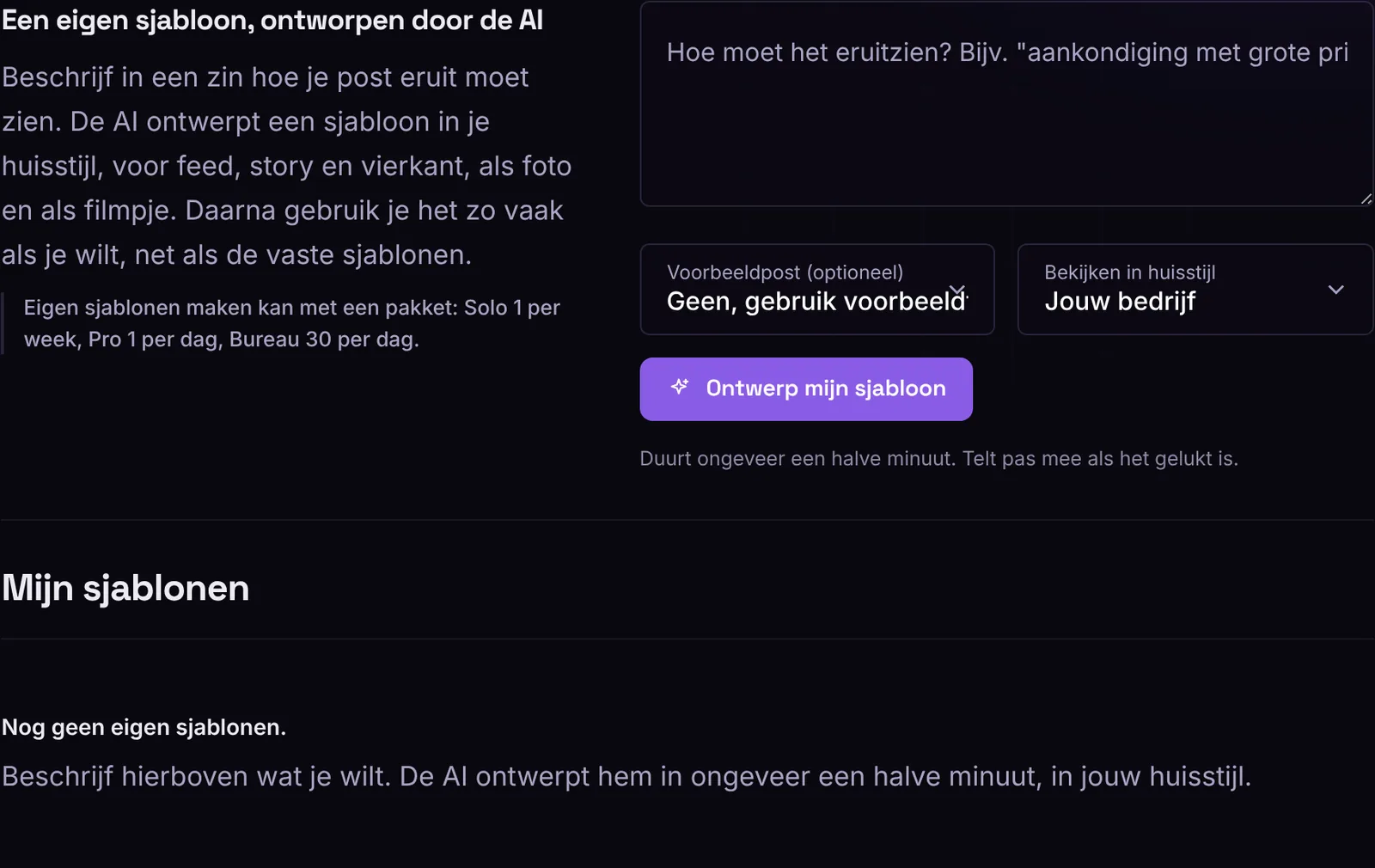
- Under What should it look like?, describe what you want, for example big price on the left and a photo on the right in a rounded card.
- If you like, choose a sample post: one of your own designs. The AI then adjusts the boxes to the length of your texts.
- Under Preview in brand style, choose the brand style you want to see it in and click Design my template.
You see the template right away in the three formats: feed (4:5), story (9:16) and square. With Play animation you see how the video builds up.
Tips for a good description
- Say what should be big: the headline, the price or a quote.
- Say where the photo should go, or that there is no photo.
- Mention the mood: calm and light, or full of colour and big letters.
- Examples: customer quote big on a colour block, with large quotation marks, checklist in a light card, headline in tall letters, event announcement with the date big.
Name and adjust
The AI gives the template a name. You can change it in the Template name field. If you want something different, open Adjust with AI and briefly write what should change, for example bigger headline and the photo on the left. Adjusting counts as a new template.
Use your template
- Click Use, or choose it under Create, below the standard templates, at Or your own template. You then only see the fields that are in your template.
- Logo, colours and website come from your brand style. So the same template works for all your brand styles.
- If you have the AI write your posts, choose your own template, or turn on the checkbox Let the AI choose the template, also from your own templates.
- Downloading as a photo or video and sharing work just like with the standard templates.
How many templates can I make?
New templates per plan: Solo 1 per week, Pro 1 per day, Agency 30 per day. It counts from the previous template: with Pro you can make a new template again 24 hours later. In the Templates tab you see how many you can still make and when. An attempt that fails does not count. You can use your saved templates without limit. You can save up to 25 (Solo), 150 (Pro) or 1000 (Agency).
Remove
Click Delete next to the template. Designs that use it are kept and get the standard template Terminal.
Good to know
- The AI only designs the layout: position, letters, colours and movement. You fill in your texts yourself, or you have the AI write them.
- For a story, the template keeps space free at the top and bottom for the Instagram and TikTok buttons.
- You can make your own templates with any Trend Lava plan.
- What you make is yours, also for ads.