Make your WordPress website faster: 8 fixes
A slow WordPress site frustrates visitors and costs you your ranking in Google. We measure first, then you fix the biggest problems without a developer.
 Team Netslim 16 Oct 2026 5 min read

Your WordPress site loads slowly, and you don't know where to start. Visitors click away, Google ranks you lower, and you lose potential customers. The good news: you don't need to be a developer to fix it. You can solve most speed problems yourself, but you need to know where to start.
In this article, we help you step by step. First we measure what is slow, then we tackle the problems in order of impact. The problem is usually in the hosting, caching, images or plugins. Start there, and your site will quickly get much faster.
Step 1: Measure your website with a free website check
You can guess what is slow, but measuring is better. With a free website check you see exactly what the problem is: load time, image optimisation, caching, plugins and more. These tools give you concrete numbers and advice.
For example, you might see: “Images are 2 MB, but could be 200 KB” or “Your hosting server responds slowly”. Then you know where to start. Many websites we check have the same problem: poor hosting or large, unoptimised images.
Solution 1: Upgrade your hosting
Hosting is the foundation. Poorly hosted WordPress sites always load slowly, even if you do everything else right. Your shared hosting doesn't need to be expensive, but it does need to be solid.

What to look for:
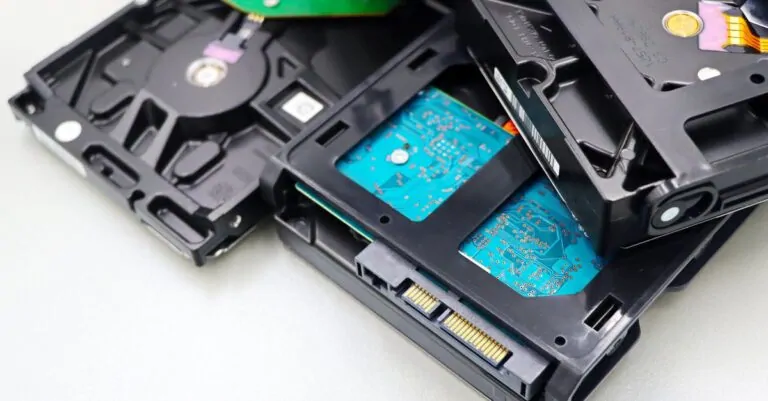
- NVMe drives (much faster than HDD or regular SSD).
- Enough PHP workers (if many people visit your site at the same time, it doesn't slow down).
- Automatic updates for WordPress and plugins (they save time and prevent security gaps).
- Free SSL certificate (secure connection, which Google wants to see).
- Daily backups (if something goes wrong, you can restore easily).
- Server in the Netherlands (faster for Dutch visitors).
WordPress hosting that includes everything above starts at around 7 euros per month. Better than free hosting and much cheaper than “premium” offers.
Solution 2: Turn on caching
Caching means: WordPress prepares your pages in advance (cached), so visitors don't have to wait while everything is calculated. Your site loads much faster.
There are two types:
- Server-side caching: Your hosting handles this for you. With Plesk (which many good hosts use), it is built in.
- Plugin caching: You install a plugin such as WP Super Cache or W3 Total Cache. Set it to “Easy” and don't touch anything else.
Tip: if your hosting handles caching well, you don't need a plugin. Ask your hosting provider what they offer.
Fix 3: Optimize images
Images are usually the biggest speed killer. A photo of your product that is 5 MB loads very slowly. Most visitors won't see it in full resolution on their phone anyway.
You can do this yourself:
- Download your images from your site (in WordPress: Library).
- Compress them with a free tool if
tinypng.comofsquoosh.app. You remove 70 to 90 percent of the size without noticing any difference. - Upload them again in WordPress.
For the future: don't upload images larger than 1 MB, and never make an image larger than you will use it (no 4000×3000 pixel photo for a 200×200 thumbnail).
If you have a lot of images, save time and effort with a plugin: Imagify or ShortPixel do this automatically. They are not free, but you won't spend more than a few tens of euros per month on them.
Fix 4: Remove or deactivate useless plugins
Every plugin you activate costs you time. Many plugins do the same thing, or you no longer need them. Every plugin you remove makes your site faster.
Check your plugins:
- Which plugins do you actually have? You can find them in your WordPress admin under Plugins.
- Do you really use them? If you are not sure what a plugin does, remove it.
- Do two plugins do the same thing? Keep the best one and remove the other.
- Is it an old plugin that is no longer updated? Get rid of it, it is a security risk.
Many sites have 50+ plugins. You may need 5. Every plugin you remove is a win.
Fix 5: Update  and plugins
Old versions are slow and insecure. WordPress regularly adds speed improvements. Updates take your time, but they pay off.
If your hosting is good, this happens automatically. Otherwise, you click “Update” in the WordPress admin and wait. Put your site in maintenance mode first (WordPress does this by itself) so visitors don't see an error.
Fix 6: Minify and defer JavaScript
This sounds technical, but it comes down to two simple things:
- Minify: JavaScript code is made smaller (spaces and unused code removed). Many free plugins do this, such as Autoptimize.
- Defer: JavaScript loads after your page has already loaded. Visitors see your page faster, and the rest follows after that.
You install Autoptimize, go to settings, turn on “Minify HTML”, “Minify CSS” and “Defer JavaScript”, and you are done. You don't need to do more.
Solution 7: Lazy loading for images
Lazy loading means images that are not visible on your screen are only loaded when you scroll to them. This makes the first load time much faster.
Many web shops have hundreds of product photos. With lazy loading you don't load 100 images at once, only the ones the visitor sees.
WordPress and most cache plugins have this built in. You turn it on in your settings. Autoptimize can do this too.
Solution 8: Look at your Content Delivery Network (CDN)
This is for people with visitors all over the world. A CDN makes copies of your site on servers spread around the world. Visitors then download from the server closest to them.
Small Dutch sites don't need this. Web shops with many international visitors do.
Many hosting providers offer a CDN. Turn it on in your settings, and your site loads faster for visitors abroad. The cost is low (often 2 to 5 euros extra per month).
Prioritize in this order
You can't do everything at once. This is the best order (from most effect to least effect):
- Upgrade or move your hosting (the most effect).
- Optimize images.
- Remove useless plugins.
- Turn on caching.
- Activate lazy loading.
- Minify and defer JavaScript.
- Check updates.
- CDN (only if you have a lot of international visitors).
What to do now
Start here: run a free website check so you can see what is slow. It gives you concrete numbers. Then you tackle the problems in order of impact. You usually start with checking your hosting (is your host solid?), then optimize images, then clean up plugins.
You don't need to hire a developer for this. You can do it yourself in an afternoon. Most sites get two to three times faster quickly. And every time your site loads half a second faster, more visitors stay and Google ranks you higher. That pays off fast.
Frequently asked questions
How do I know if my WordPress site is slow?
A page should load in under 3 seconds. You can measure this with Google PageSpeed Insights or a free website check. You can also see how long it takes in your browser: open your site and look at the bottom right for the page load time. If it takes longer than 3 seconds, there is work to do.
What is faster: upgrading hosting or removing plugins?
Upgrading hosting gives you much more speed than removing plugins. Poor hosting makes caching impossible and slows everything down. This is usually the first fix. Removing plugins helps too, but only if you have a lot of unnecessary plugins.
Do I have to buy a plugin for optimization?
No. Free plugins like Autoptimize, WP Super Cache and Imagify (limited free version) do the job. The paid versions are faster or easier, but for most sites free is enough.
Can I optimize images myself without plugins?
Yes, with free tools like tinypng.com or squoosh.app. You download your images, compress them (usually 70-90% smaller), and upload them again. This takes time if you have a lot of images, which is why many sites use a plugin.
Read also
All blogs →
SEO for small businesses: a checklist to get found locally
Want to rank higher in Google without a big budget? With a Google Business Profile, good titles and a fast website, a small business can get far. Here is your step-by-step checklist.
Backing up your website: how often and where to store it
Making a backup is not just saving a file somewhere. You need to store your database and files separately, update them regularly and, above all, keep them somewhere other than your server.

What is edge computing and what does it mean for your website
Edge computing processes data close to your visitors instead of sending everything to a server far away. Find out when this is really faster and when regular hosting is enough.