To show your results in Google, we read your figures from Google Search Console. You give us read-only access. We can't change anything.
Step by step
- Go to My account › Edge SEO and open Google connection.
- Click Connect with Google.
- Choose the Google account you use for Search Console, and give permission to read your figures.
- Done. We retrieve the past 16 months right away. The graph appears within a few minutes.
Prefer to use an email address?
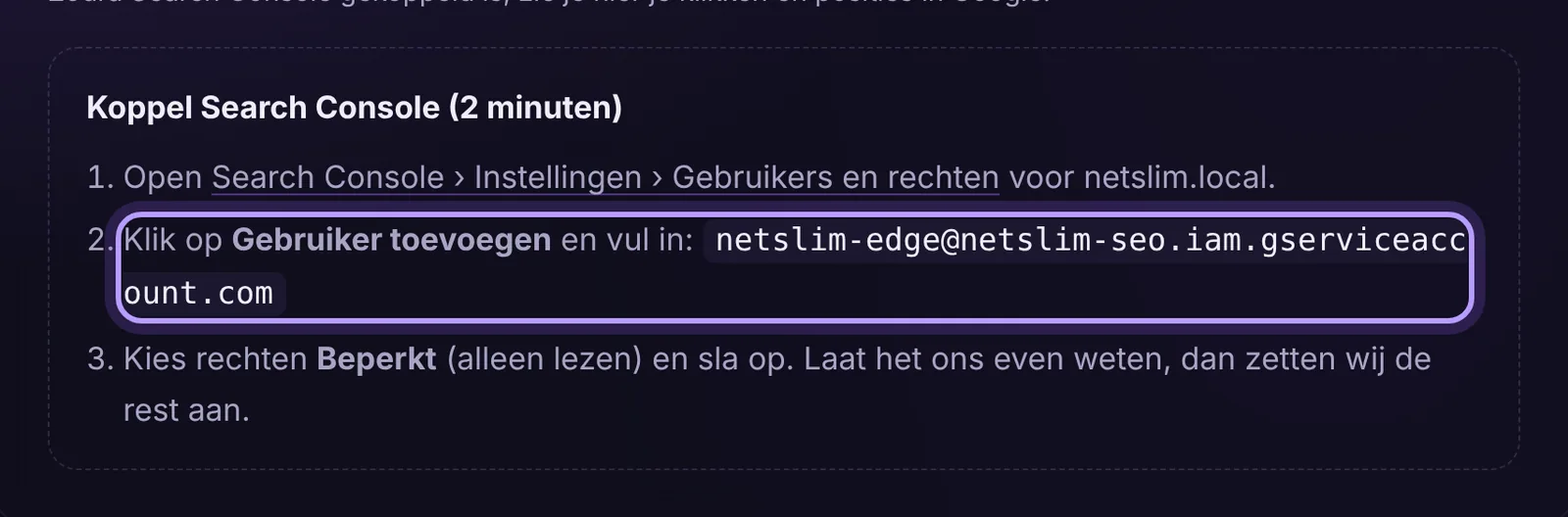
Can't or don't want to connect with your own Google account (for example, because an agency manages Search Console)? Then in Search Console, under Settings › Users and permissions, add the email address shown in your account (it ends in .iam.gserviceaccount.com), with Restricted permissions. Let us know, and we will turn on the connection.
Don't have Search Console yet?
Then we will set it up for you. All it needs is a TXT record in your DNS. We do that if your domain is with us.
Why 16 months?
This way you also see seasons and the situation from before Edge, so the comparison is fair. Clicks also vary by weekday (people search differently at the weekend). So look at the line over weeks, not at a single day.